
Welcome, Creator! 🎬
First off, thank you for grabbing my LUTs! I’m super excited for you to start color grading and take your videos to the next level. This page will walk you through everything you need to know to install and use LUTs in different editing software. To make things easy, I have put together step-by-step Installation Guides and Video Tutorials. Let’s get started!


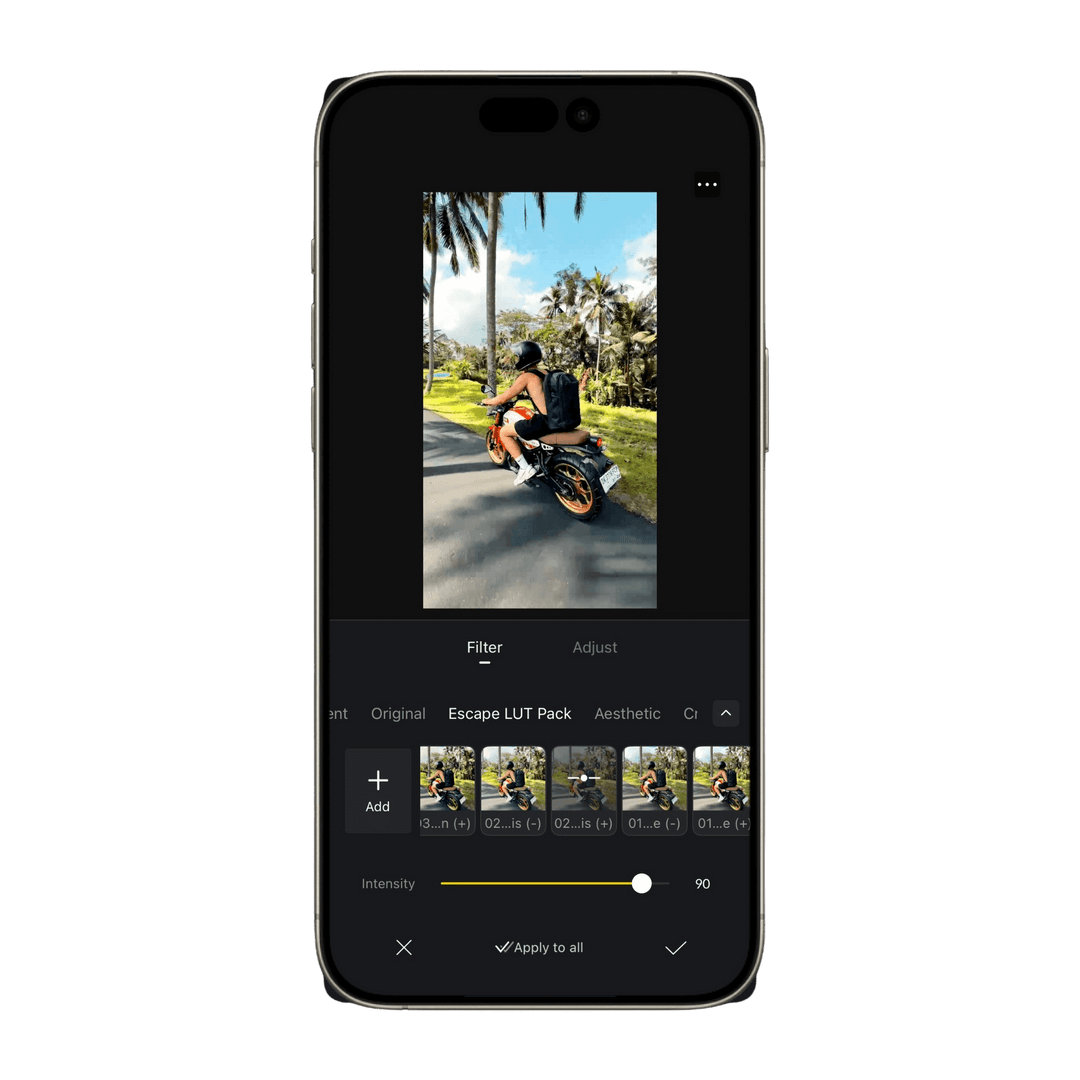
VN App (Mobile):
- Open VN App and create a new project.
- Open your Files App > Downloads > LUT Pack.
- Select all LUTs and Share > VN.
- Create a new Filter Library and Import the LUTs.
- Apply the LUT and fine-tune with the Intensity slider.

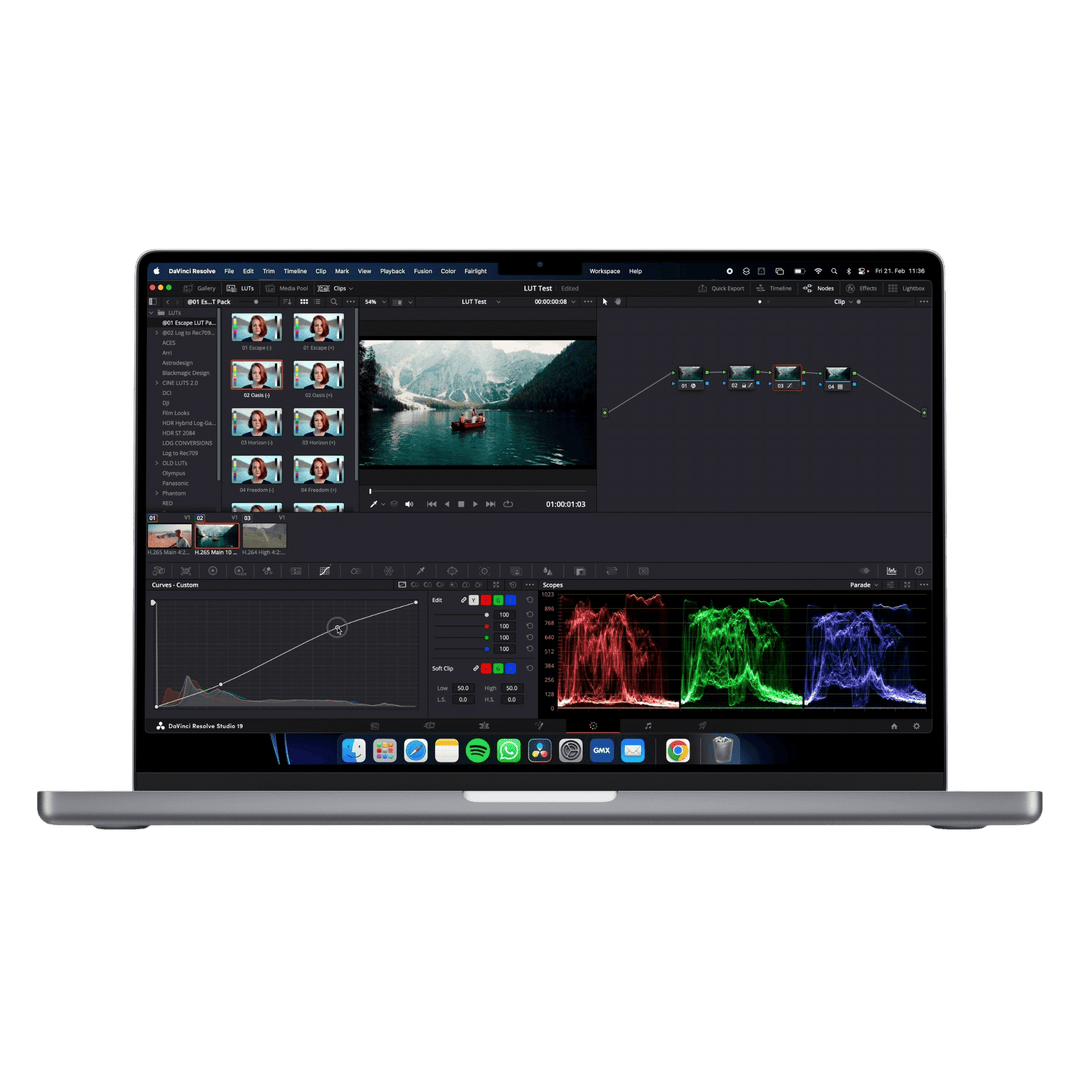

Davinci Resolve:
- Open DaVinci Resolve and switch to the Color tab.
- Open the LUTs panel, right-click and choose Reveal in Finder.
- Copy the LUT Pack from your Downloads folder.
- Apply the LUT and tweak settings to your preference.
Premiere Pro:
- Open Premiere Pro and go to the Color workspace.
- Open the Lumetri Color panel.
- Under the Creative tab, click on Look > Browse…
- Select the LUT from your downloaded folder
- Adjust intensity as needed and start editing!


Final Cut Pro X:
- Install a LUT Utility plugin (if needed).
- Import your footage and apply the Custom LUT effect.
- Choose the LUT from your downloaded folder.
- Adjust the intensity to get the perfect look.
FAQs
Yes! You can apply them in the VN App, LumaFusion, KineMaster, or any app that supports custom LUTs.
- Make sure you placed the LUTs in the correct folder for your software.
- Restart your editing program after importing the LUTs.
- Try adjusting the intensity slider in your editing software.
- Make sure you’re using the Rec709 LUTs on standard footage (not LOG or RAW footage).
- Every LUT comes in a High Intensity (+) and a Low Intensity (-) Version. Try to use the (-) Version and add the Contrast manually.
Lighting, camera settings, and color balance affect how LUTs apply. Try fine-tuning your exposure, contrast, and white balance before applying the LUT.
- Check out the FAQ page: jannescape.com/help
- Still stuck? Email me at info@jannescape.com – I’ll be happy to help!
Any other questions?
If you have any questions about my LUTs and presets, feel free to reach out. I’m excited to hear from you and will get back to you as soon as possible!